POG2

Instructions

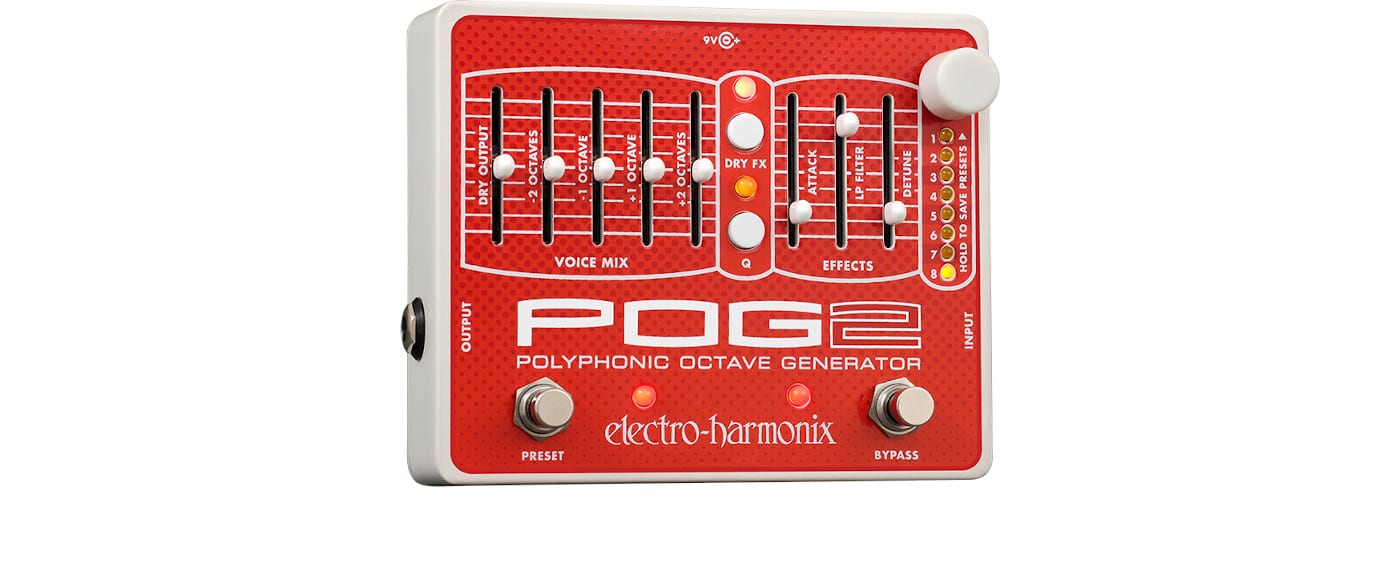
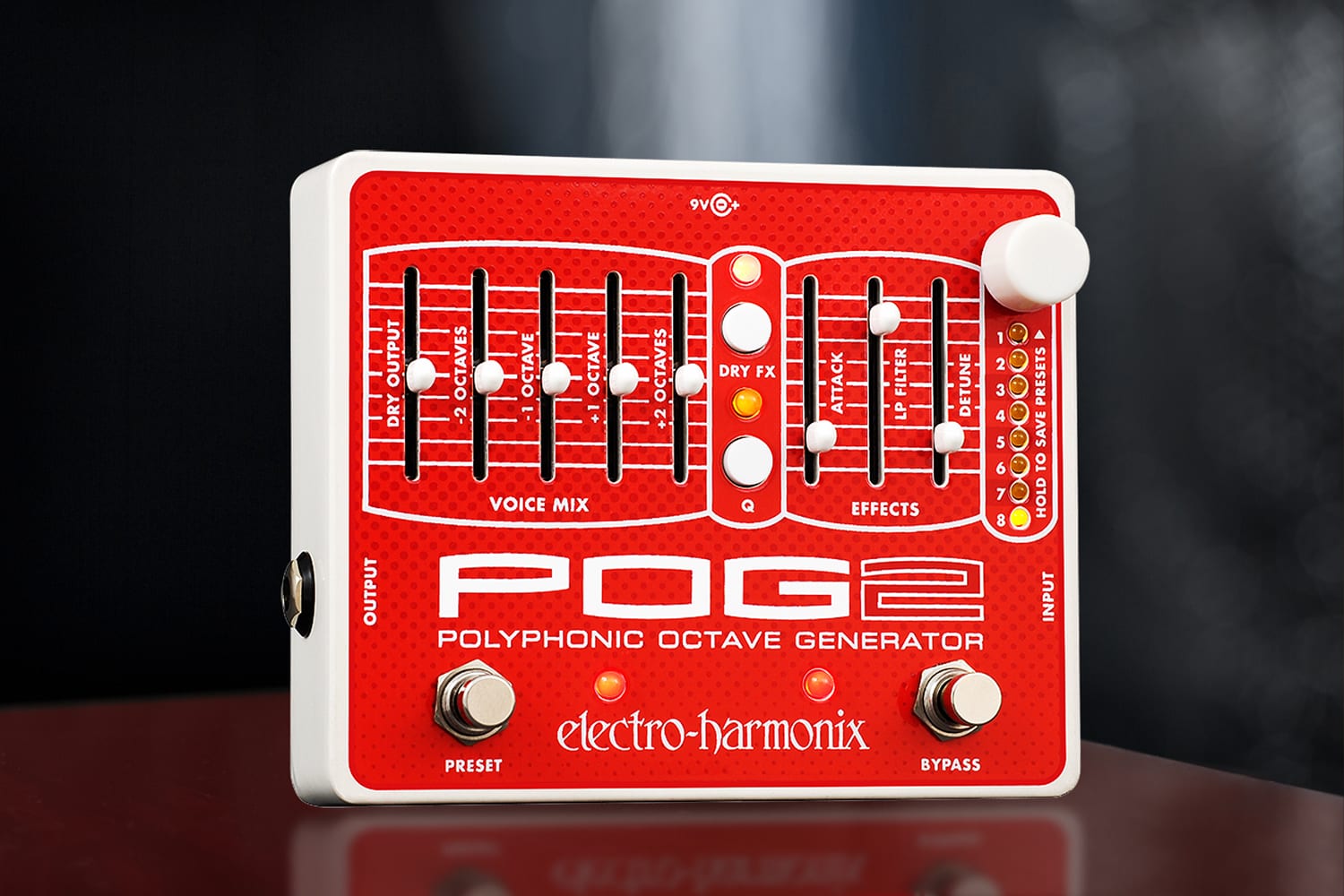
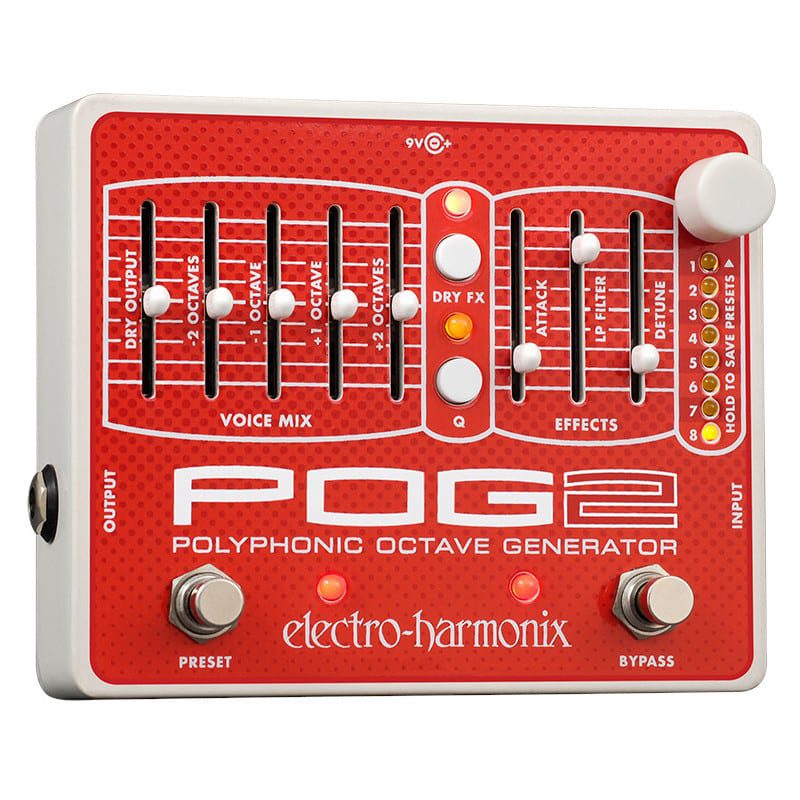
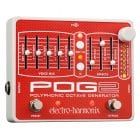
Congratulations on your purchase of the POG2! The POG2 is a Polyphonic Octave Generator that draws its heritage from the now legendary POG, originally released in 2005 to worldwide acclaim. The POG2 can simultaneously generate multiple octaves from your input signal. Whether you play single notes, arpeggios or full chords, the POG2 will perfectly track every note you play. With the POG2, you can mix together your original “dry signal” with four different octaves: one octave above the original note, two octaves above the original note, one octave below your original note and two octaves below the original note. Additionally you can detune the two upper octaves, slow the attack on all voices including the dry signal and process the overall tone through a low pass resonant filter with adjustable filter cutoff and selectable Q. The POG2 is fully programmable allowing you to store and load presets for performance and recording.

-CONTROLS-

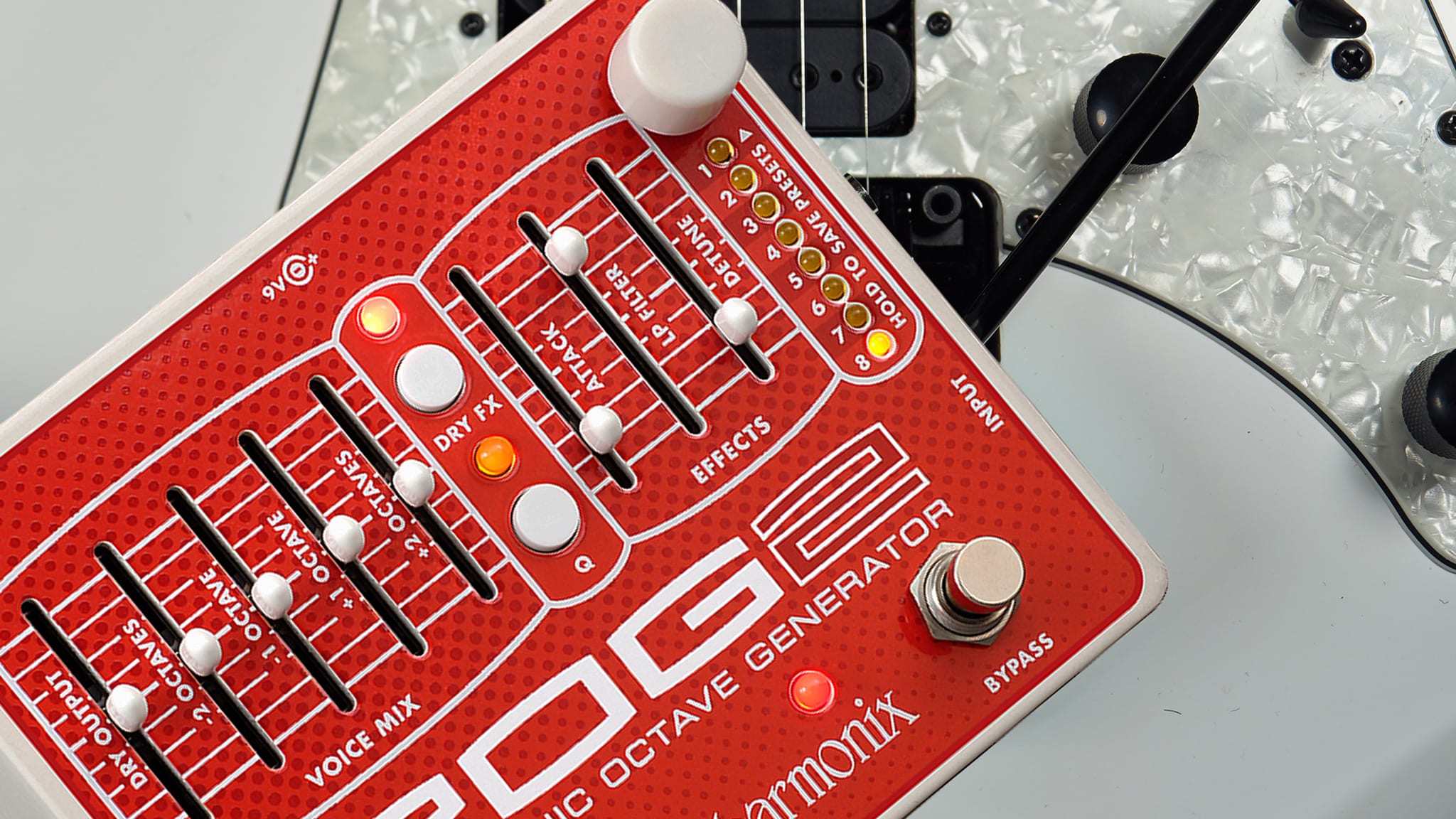
DRY OUTPUT Slider - Controls the output volume of your original DRY signal before it exits the POG2.  The DRY OUTPUT volume will increase as its slider is pushed upward.

-2 OCTAVES Slider - Controls the output volume of the signal 2 octaves below the input signal, which is one quarter of the frequency of the input signal. As this slider is pushed upward, the volume of the -2 OCTAVE below the original pitch will increase. If you play a middle C note, this slider will control the volume of the C note two octaves below middle C.

-1 OCTAVE Slider - Controls the output volume of the signal 1 octave below the input signal, which is half the frequency of the input signal. As this slider is pushed upward, the volume of the -1 OCTAVE below the original pitch will increase. If you play a middle C note, this slider will control the volume of the C note one octave below middle C.

+1 OCTAVE Slider - Controls the output volume of the +1 octave signal. True to its name, the +1 OCTAVE signal is one octave above the original input signal. The +1 octave signal is twice the frequency of the original input signal. The volume of the +1 OCTAVE will increase as this slider is pushed upward. If you play a middle C note, this slider will control the volume of the C note one octave above middle C.

+2 OCTAVE Slider - Controls the output volume of the +2 octave signal.  The +2 octave signal is two octaves above the original input signal or four times the frequency of the original input signal. As this slider is pushed upward, the volume of the +2 OCTAVE signal will increase. If you play a middle C note, this slider will control the volume of the C note two octaves above middle C.
ATTACK Slider - Controls the attack envelope of all the octave voices. As the ATTACK slider is pushed upward, the attack time increases producing a swell or reverse effect. Push the ATTACK slider down to its minimum position to turn the attack effect off. The Attack effect will also work on the DRY signal whenever the DRY FX LED is lit, no matter the color of the DRY FX LED.

LP FILTER Slider - Controls the cutoff frequency of the Low Pass Filter. As the LP FILTER slider is pushed upward, the cutoff frequency of the filter rises. The LP Filter control can be used to shape the tone of your POG 2. All of the generated octave signals go through the LP Filter. The dry signal bypasses the LP Filter when the DRY FX LED is off or lit red, the dry signal goes through the LP Filter when the DRY FX LED is lit green or amber.

DETUNE Slider - Controls the amount of detune applied to the +1 and +2 OCTAVE signals. As the DETUNE slider is pushed up both the depth and rate of detune are increased. When DETUNE is pushed down to its minimum position the detune function shuts off. The DETUNE slider will also effect the DRY signal when the DRY FX LED is lit amber.

DRY FX Push-Button and LED - The DRY FX Button cycles through four modes allowing the DRY signal to either bypass or pass through the Attack, LP Filter and Detune effects. The modes are as follows:

LED State MODE
Off DRY bypasses all effects
RED DRY goes through Attack control, bypasses LP Filter and Detune
GREEN DRY goes through Attack and LP Filter, bypasses Detune
AMBER DRY goes through all three effects: Attack, LP Filter and Detune

Q Push-Button and LED - The Q button and LED cycles through four levels of resonance or Q for the Low Pass Filter. As the Q LED gets brighter the Q increases. LED off signifies the least amount of Q. The brightest Q LED setting signifies the highest Q setting.

PRESET KNOB - The white PRESET knob is used to select, load and save the 8 available presets. You can load the selected preset by pressing and releasing the PRESET knob. To save a setting, first set the POG2 to the sound you want to save, then turn the PRESET knob to the preset number you want to save your sound into. Now press and hold the PRESET knob for 3 seconds. Release the knob after all of the Preset LEDs stop blinking. 

BYPASS FSW and LED - The BYPASS FSW is used to toggle the POG2 between effect mode and true bypass mode. When the associated LED is lit, the POG2 is in effect mode. When the LED is off the POG2 is in true bypass mode.

PRESET FSW and LED - The PRESET FSW can be used to cycle through and load the 8 available presets. When a preset is loaded, the PRESET LED located near the PRESET FSW will light up solid. If a preset is loaded and then a slider is moved or push-button is pressed, the PRESET LED will blink rapidly to indicate that a parameter has been changed since the preset was loaded.

INPUT Jack - This 1/4” jack is the audio input to the POG2. The input impedance presented at the INPUT jack is 2 M(.

OUTPUT Jack - This 1/4” jack is the audio output from the POG2.  The output impedance is approximately 800 (.

9V Power Jack - Plug the output of the supplied AC Adapter into the 9V power jack located at the top of the POG2. The POG2 requires 180 mA at 9 VDC with a center negative plug. The POG2 accepts Boss style AC Adapters.

- PRESETS -

The POG2 can save and load up to 8 presets. The position of all sliders and the setting of the two push-buttons are saved with each preset. The state of the BYPASS FSW is not saved with the presets. The POG2 will remember all presets after power down has been removed.

PRESET SAVE PROCEDURE:
1. To save the current slider positions and push-button settings, press and hold down the white PRESET knob.
2. Hold down the PRESET knob for 3 seconds. Nothing will occur for 2 seconds, then all the preset LEDs will blink for 1 second.
3. After the LEDs stop blinking, release the PRESET knob.  The PRESET LED, located to the right of the PRESET Footswitch, will light up solid.
4. Your preset has been saved in the preset number that is currently lit.

PRESET LOAD PROCEDURE:

USING PRESET KNOB
1. To Load a preset you previously saved: turn the PRESET knob to the preset number where the preset was saved.
2. Press and release the PRESET knob. The PRESET LED, near the PRESET Footswitch, will light up to indicate that the Preset has loaded. Please Note: The current slider positions are no longer valid.

USING PRESET FOOTSWITCH
1. To Load a preset you previously saved using the PRESET Footswitch: press and release the PRESET Footswitch. The PRESET LED will light up to indicate that the Preset has loaded for the currently selected preset number. Please Note: The current slider positions are no longer valid.
2. If you press and release the PRESET Footswitch while a preset is already loaded, the POG 2 will jump down to the next preset and load the preset.  For example, if you currently have Preset 3 loaded, pressing the PRESET Footswitch will select and load Preset 4.

After loading a preset, if you move a slider or press a push-button, the control’s new location or setting will supersede the preset’s stored value for that control. At this point, the PRESET LED, near the PRESET Footswitch, will blink rapidly to indicate that a control has been moved or changed. If you then return the control back to its original position, as saved in the preset, the PRESET LED will stop blinking.

If the PRESET LED is blinking rapidly, when you press the PRESET Footswitch, it will re-load the current selected preset.

PRESET UNLOAD PROCEDURE:
A preset can be unloaded to restore the current knob positions so they represent what you hear. There are two ways to unload a preset: press and release the PRESET knob or turn the PRESET knob to select a different preset number.

Quick Specs
True bypass
Totally programmable 8-preset memory with instant recall
5 mixable polyphonic octave harmonics
Attack delay slider controls the fade-in speed of the octaves
Low Pass filter with selectable Q
Dry signal can be routed through the Attack, LP, and Detune faders
Flawless polyphonic glitch-free tracking
Can be daisy chained with other pedals and power supplies
9DC-200 power supply included
The EHX Community
Here are a few easy ways to stay informed on the latest news from Electro-Harmonix...
Forums (Discussion & Support)
Have a question, comment, suggestion? Come join the EHX Forums! You'll meet EHX staff and knowledgable users from around the world.
Email Alerts
Simply send an email to with "subscribe" in the Subject.
Facebook
YouTube
MySpace
Twitter
RSS Feed
EHX Merch Shop
Show your colors with an EHX t-shirt -- you can even custom design your own shirt from scratch!
We've been playing these EHX Strings ever since we first took them home to try them out, back in 2002.

We find them to consistently offer rich harmonics with powerful definition, while also lasting longer and staying in tune longer than conventional strings.

We use them, we like them, and we think you will too. Available in 9's, 10's, 11's.

Electro-Harmonix | www.ehx.com | Blog | Forums | Merch
YouTube.com/ehx | MySpace.com/ehx | Facebook.com/ehx | Twitter.com/ehx